 PhishLens
loading the server's counters
Chrome extension · Gmail + Outlook · 8 languages · open source
See why an email is phishing.
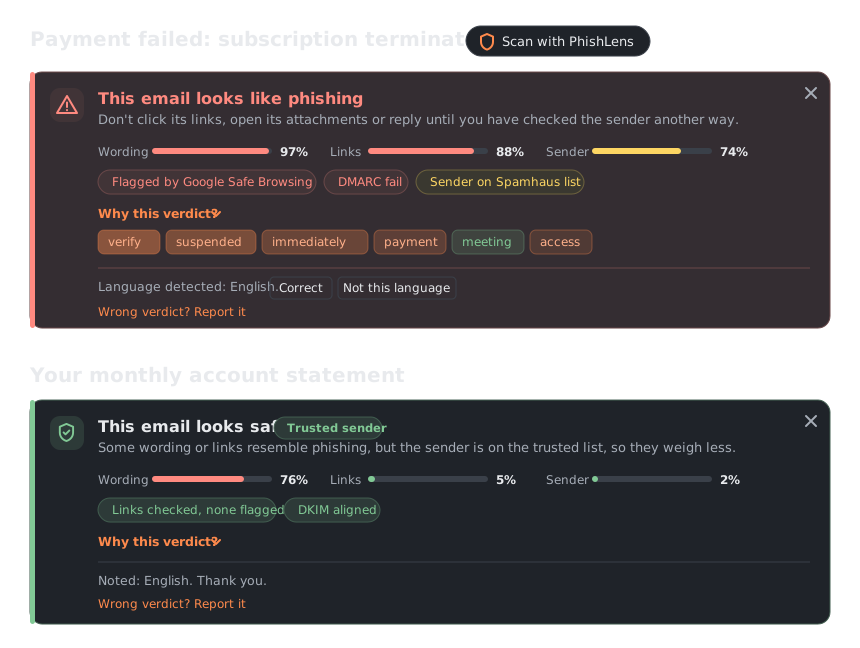
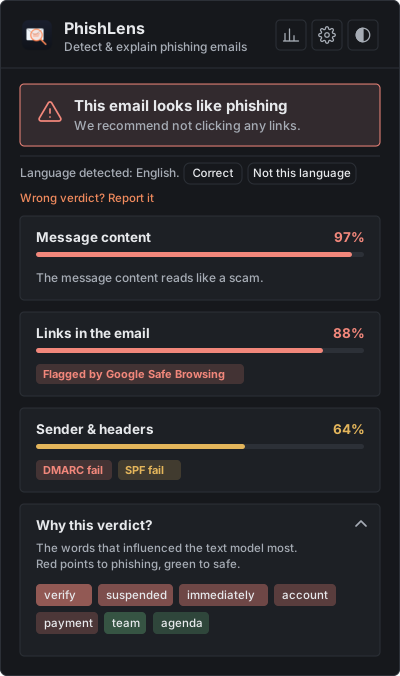
PhishLens adds a verdict above every email in Gmail and Outlook: one score per check, the signals it found, and the words that weighed most. Click Scan, or let it check new mail on its own.
Install PhishLens
checking the server
Results
90.2%
phishing caught by the whole system, in recent emails nobody had looked at95% confidence interval: 88.8% to 91.4%
1 legitimate email of 414 flagged (0.2%) · about 190 ms per email on the server · checked on real phishing in 6 of the 22 languages the text model reads
Measured on PhishLens Cloud on November 1, 2026 with the public benchmark: 1,804 of 2,000 recent phishing emails in several languages, drawn from those nobody looked at while tuning (95% confidence interval 88.8% to 91.4%), and 1 of 414 legitimate emails (297 from public mailing lists, 117 from real inboxes; 0.0% to 1.4%). The scan time is the median for a typical email (about 250 tokens); a short one takes about 65 ms. An order of magnitude, not a guarantee: see how it was measured and the known limitations.
PhishLens Cloud, right now
Read from the server when the page loads. Counters reset when the server restarts.
What it checks
Real bank and university emails use the same words as phishing, so a text model on its own flags them. PhishLens checks the evidence before it decides.
- WordingA multilingual model (mmBERT-small, distilled from a larger phishing detector) scores the text in 22 languages; LIME shows the words that pushed the verdict.
- LinksEvery real link target, including the one behind "Click here", checked against Safe Browsing, PhishTank, URLhaus and Spamhaus.
- SenderSPF, DKIM and DMARC show who really sent it. Forwarded mail does not borrow the forwarder's trust.
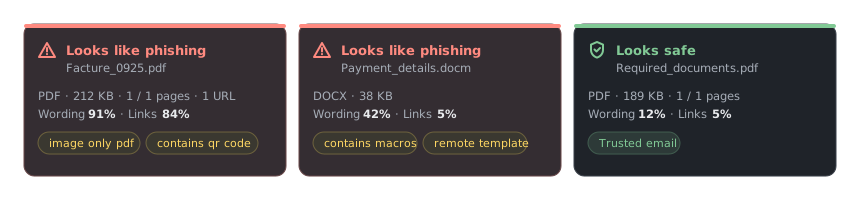
- AttachmentsPDFs (scanned ones through OCR), QR codes, Office macros and remote templates, ZIP, RAR and 7z archives and calendar invites.
- Real inboxesConversations, image-only mail and links to files shared on Drive, OneDrive or Dropbox.
Features
- Explainable verdictsA score per check, the signals found, and the words that pushed the text model, so you can judge for yourself.
- Gmail and OutlookA Scan button next to the subject in Gmail and Outlook on the web; files and pasted text in the popup.
- Automatic checksOptional: new mail is checked as it arrives, marked Safe or Phishing? in the list, with a notification.
- Private by designNo account. Emails are analysed in memory and not stored; your history stays in your browser. Run your own server and no email leaves your computer.
- Your own accuracyMark each verdict right or wrong and see how PhishLens performs on your real mail, with a CSV export.
- Open and testedLicensed under the GNU AGPL-3.0, with a threat model, CodeQL and more than 300 automated tests run on every change.
How it works
- ReadThe text, the real link targets, the sender and, in Gmail, the full original headers.
- ScoreA multilingual model for the wording, a model and rules for the links, rules for the sender and where the links lead.
- VerifyAuthentication results and four threat-intelligence sources, before any verdict.
- ExplainA verdict, a score per check, the signals found and the words behind it, above the email.
Try it
This box uses the same server as the extension. Nothing is stored, but please use test emails, not private ones.
The verdict, the score of each check and the words behind it appear here.
Why it exists
PhishLens began as our group's final-year project at Nile University of Nigeria. Of the topics we considered, we chose a phishing detector that explains its verdict instead of only flagging an email. When the course ended I kept it going on my own: it is now an independent project, with no link to the university. In mid-October it still flagged 130 of the 297 legitimate mailing-list emails of its own benchmark; the fixes that brought that down to 1 are described step by step, and every run is published, good or bad.
AnzouK
Install
PhishLens is not on the Chrome Web Store yet: load it by hand, it takes about two minutes.
1. The extension
- Download
PhishLens-extension-….zipfrom the latest release and unzip it. - Open
chrome://extensionsand turn on Developer mode (top right). - Click Load unpacked and select the unzipped folder.
- Open an email in Gmail or Outlook on the web and click Scan with PhishLens next to the subject.
2. A backend
- PhishLens Cloud (default): nothing to do.
- Your own, private: run it with Docker, then pick Local in the extension settings.
# the public English text model; PhishLens Cloud runs the multilingual one
huggingface-cli download AnzouKiona/phishlens-distilbert \
  --local-dir backend/model
cd backend && docker compose up --build
Python without Docker, configuration and deployment: see the quickstart.